Short answer: Treat Gmail phishing emails as requests to verify before acting, even when they use a familiar display name or professional design. Check the sender and the requested action, confirm the issue through a separate trusted route, and use Gmail’s phishing report when appropriate. A clean-looking message or an authentication result cannot establish that every instruction inside it is safe.
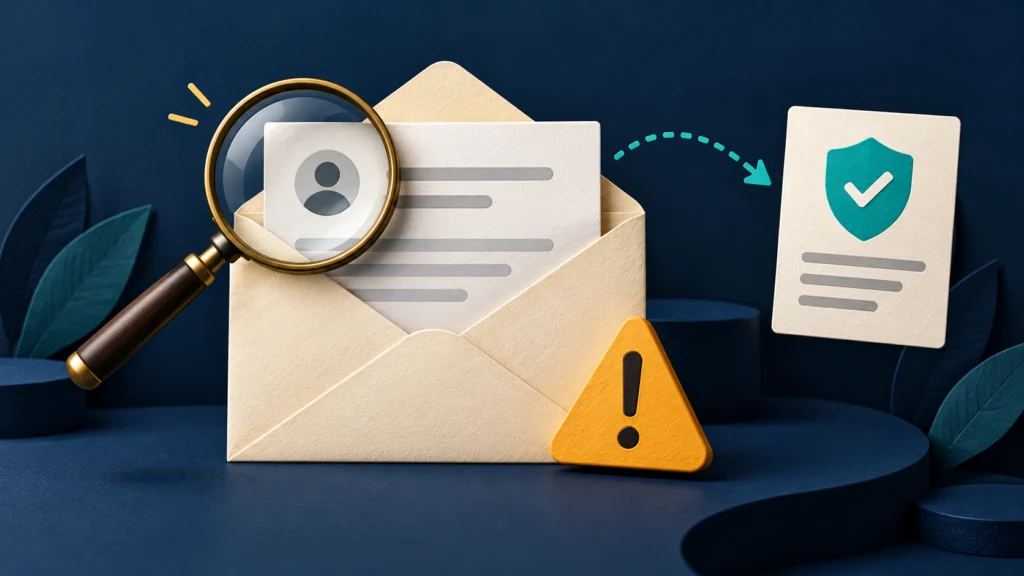
This guide focuses on suspicious messages in Gmail, especially the desktop reporting workflow. It is for individuals, freelancers and small teams who need a repeatable way to handle an unexpected invoice, account warning or document request. It does not inspect your mailbox or determine whether a particular sender has committed a crime.
Gmail phishing emails: start with the requested action
Google’s phishing guidance warns about deceptive messages seeking information, downloads or link clicks, including messages impersonating familiar organisations and people. The practical question is not merely “does this look official?” but “what am I being asked to reveal, install, authorise or send?”
Write the action in plain language. “Review my invoice” can conceal a request to sign into an unfamiliar page. “Confirm account ownership” may ask for a password. “Urgent approval” may change a payment destination. Naming the action makes it easier to compare the request with the relationship you actually have.
A message can contain real information and still require checking. An accurate project name, signature or quoted conversation is useful context, but does not independently authorise a new instruction. Separate what you recognise from what remains unverified instead of treating the whole message as a single yes-or-no impression.
| Message asks you to | Useful first check | Avoid while uncertain |
|---|---|---|
| Sign in or disclose a code | Open the service independently | Entering credentials through the message link |
| Download an unexpected file | Confirm the file and purpose with the sender | Opening it just to discover what it is |
| Change a payment instruction | Use an established verification contact | Treating email appearance as authorisation |
| Act before an urgent deadline | Find the notice in the real account or service | Allowing pressure to replace verification |
This is a triage table, not a verdict on a message. A genuine deadline may exist; check it in the authoritative service. An unexpected email should not become the only evidence both that a deadline exists and that the email’s proposed response is the correct one.
Compare the display name with the actual address
Look past the friendly name to the email address and its domain. Compare it with the address already known from your relationship, rather than an address supplied elsewhere in the suspicious message. Pay attention to changes that are easy to overlook when a name is long or the screen is narrow.
Keep three observations distinct: the name displayed, the sending address and the action requested. A mismatch deserves investigation, but a matching name does not complete the check. If a message says it comes from a colleague, use the colleague’s established contact to confirm the unusual request.
Do not reply to the same message asking “is this real?” as your only verification. That leaves the question inside the communication channel you are trying to evaluate. Start a separate contact from an address book, known number or the service you normally use.
Be careful when forwarding a suspicious message to a friend for advice. It may contain personal documents, contact details or live links. Prefer a minimal description when that is enough. If an organisation has a designated security-reporting route, follow that route rather than distributing the message broadly.
Use authentication as evidence with limits
Google’s message-authentication help explains that an unauthenticated message is not automatically spam and that spammers can authenticate mail too. This supports an important distinction: authentication information is a technical signal about a message, not a guarantee that its business request is legitimate.
Where the interface shows sending or signing information, compare it with what the sender claims. If you are not sure how to interpret a result, preserve it for a qualified reviewer. Do not change your own mail-security settings to make an unfamiliar message look more acceptable.
For desktop Gmail, Google’s full-header instructions describe opening the message’s menu beside Reply and choosing Show original. This exposes more technical information for inspection. It is not necessary to understand every header before deciding to stop and verify an unusual request.
A header can contain addresses, routing details and identifiers. Do not paste a full original into a public post or an arbitrary analysis site merely because someone promises a quick answer. Use an approved support channel and disclose only what is necessary for the question.
Keep the conclusion proportionate to the evidence. “The sender detail differs from the contact I expected” is a useful observation. “This proves a particular person is a criminal” goes beyond it. Clear descriptions help a security team investigate without inheriting a confident but unsupported accusation.
Leave the message and verify the real issue
If an email claims there is an account problem, open the service through a trusted bookmark or by navigating independently. Look for the issue there. Do not use the email’s own link as the sole source of both the warning and the place where you supposedly resolve it.
For an unexpected document, ask whether the sender intended to share that document and why it needs the proposed access. Our Google Drive sharing-permissions guide explains access roles separately. A document invitation does not by itself establish the sender’s identity or make every access request appropriate.
If a Google-looking warning is involved, Google’s phishing guidance points readers to their account’s recent security activity for an independent check. Compare the event you find there with the claim in the message. Avoid inferring a new event solely from a subject line that sounds alarming.
Record the result of the independent contact: who confirmed what, through which established route and when. If the sender confirms only that a project exists, that is not the same as confirming a new attachment or changed payment instruction. Ask about the exact action you are deciding whether to take.
Report a phishing message through Gmail
Google’s documented computer workflow is to open the message, use More beside Reply and choose Report phishing. Check that you are acting on the correct message. Opening the message for that control is different from following its links, downloading attachments or replying to its request.
The reporting choice should match the issue. A promotional message you do not want is not necessarily an attempt to steal credentials. Google’s help also explains how to mark a message as not phishing when it has been misclassified. Use the relevant control instead of assuming every unwanted email belongs in the same category.
Reporting is an action involving the provider, not a private note visible only to you. Google’s guidance says that manually moving mail to Spam sends Google a copy of the message and attachments for potential analysis. Follow your employer’s handling rules where confidential work material is involved.
Do not treat a report as evidence that the sender has been blocked everywhere or that an investigation is complete. Keep any separate support or incident reference you receive. If a different organisation needs to know about the message, its notification process is a separate action.
If you already clicked, describe exactly what happened
Start with a factual sequence: message received, link opened, information entered, file downloaded, file opened or permission granted. These are different events. Do not describe a click as a password disclosure if you did not enter one, and do not minimise a code disclosure as “only opening an email”.
Google’s compromised-account guide covers recovery, unfamiliar security activity and devices. Use that official guidance if you suspect account access. Where an employer controls the account, contact its security team through the established route and explain the actual exposure.
The provider’s Gmail security checklist includes reviewing account access, unexpected forwarding and filters. An unfamiliar rule deserves review in context; do not delete an organisation’s legitimate configuration merely because you have not seen it before. Ask the account administrator when responsibility is unclear.
Our Google Account passkey guide addresses a separate sign-in protection measure. Improving future sign-in protection does not replace checking what happened in an existing incident. Keep prevention, recovery and reporting as distinct tasks with their own evidence.
Give a reviewer a concise, useful handoff
For a work incident, provide the message’s arrival time, subject, claimed sender, unusual request and any action already taken. Identify the account and device involved through your organisation’s approved process. Share the original message only through the channel the reviewer specifies.
Separate urgent containment from retrospective explanation. If you revealed credentials or granted access, say so promptly; you can provide a polished chronology later. A reviewer needs an accurate exposure description more than a theory about which criminal group might have sent the message.
Keep the outcome with the original case note: confirmed legitimate, reported, access recovered or still under review. This avoids a colleague encountering the same message later and repeating an unresolved action. It also preserves the distinction between what your team confirmed and what it merely suspected.
Example: a familiar project, an unfamiliar instruction
A fictional freelancer receives a message naming a real project and asking them to sign in to view a revised brief. They do not enter a password from that link. Instead, they open the usual project workspace and ask their established client contact whether a new brief was sent.
If the contact confirms a genuine change, they access it through the established workspace. If the request remains unexplained, they preserve the relevant message and use the appropriate reporting route. The example illustrates independent verification; it does not claim that any visual clue can classify every email.
Frequently asked questions
Does an authenticated email have to be safe?
No. Authentication is useful evidence, but Google explicitly notes that spammers can authenticate messages too. Evaluate the requested action separately.
Should I click a link to see whether the warning is real?
Use an independent route to the real account or organisation. Avoid making the suspicious message your only verification channel.
Is reporting phishing the same as recovering my account?
No. Reporting a message and responding to possible account exposure are separate tasks. Use the appropriate official recovery guidance when needed.
Final Gmail phishing emails checklist
Name the requested action, compare sender details, read technical signals cautiously and verify through an established route. Report Gmail phishing emails with the appropriate control, and describe any exposure accurately so that recovery and follow-up can address what actually happened.
Author: Ajit Naskar. Publication date: 18 October 2026. Updated and last verified: 17 October 2026. Correction history: Initial version; no published corrections. Desktop reporting instructions; mobile layouts and managed-account policies can differ. No new product release or universal reporting deadline asserted. CheckMatter is independent of Google. No affiliate links, private mailbox access or account-security testing performed.
Leave a Reply