Quick answer: To stop a UPI AutoPay mandate, open its details in the official UPI app, select the available pause or cancel/revoke action, complete the app’s confirmation and save the resulting status. Also check the merchant subscription separately. Loan-linked mandates can have different cancellation controls, and revocation does not refund an earlier debit or erase an amount you owe.
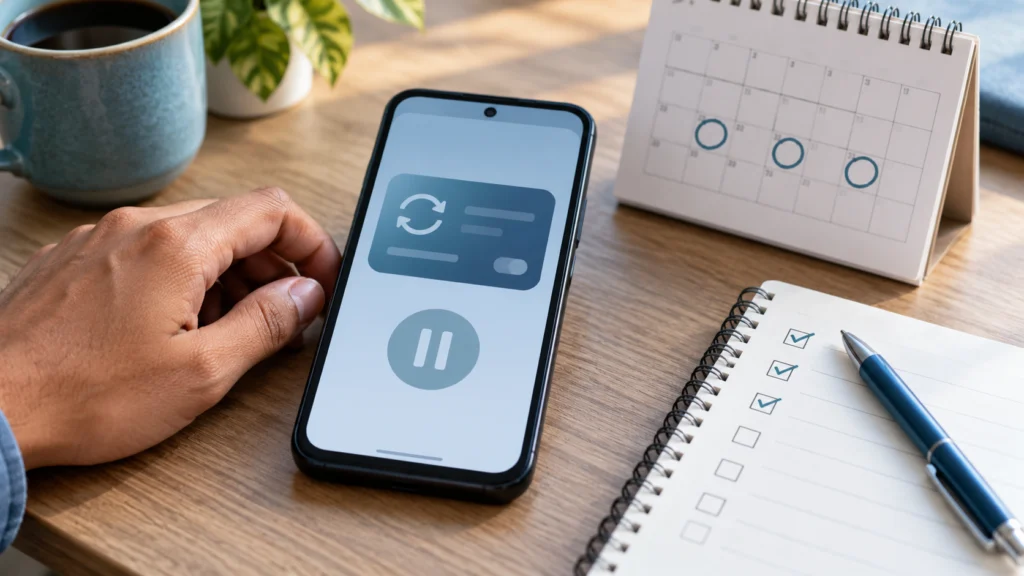
Choose the action that matches your goal
| Your goal | Action and evidence |
|---|---|
| Skip payments temporarily | Check whether pause is available and record the pause dates; check how the merchant treats service access. |
| Stop future collections | Use cancel/revoke where available and retain confirmation for the correct mandate. |
| End a subscription | Complete the merchant’s subscription-cancellation process and verify the related mandate status. |
| Recover an earlier payment | Raise a separate refund or dispute with the merchant and payment provider; a revoked mandate is not a refund receipt. |
| Change a loan repayment arrangement | Contact the lender/merchant and ask for its official mandate-change or cancellation process. |
Find and identify the correct mandate
Open the app from your phone, rather than a link sent by an unknown caller. Look for AutoPay, mandates or recurring payments. Compare the merchant, linked bank account, amount or maximum amount, recurrence, validity and unique mandate reference. Similar merchant names can represent separate subscriptions.
Make a private record of the current status and the next expected debit. If an app has multiple tabs, distinguish an unapproved request from a live mandate and a completed or revoked one. A pending request you never accepted is different from a mandate that is already active.
Google Pay: steps documented by the provider
If the AutoPay section is missing, check that you have the latest official app version. Google’s mandate-management instructions describe the current screen and loan-related exceptions.
Google’s help page currently describes this route: profile picture → Autopay → Live → select the mandate → Pause autopay or Cancel autopay. It then asks for the UPI PIN and a status check. Labels may vary with app version and mandate type. Use the linked provider instructions if your screen differs.
A PIN prompt inside the genuine app for an action you initiated can authorize mandate management. Never read the PIN to a caller, type it into a support chat or approve an unrelated collect request to receive a refund. The purpose and destination shown on the confirmation screen matter.
When pause or cancellation is unavailable
Google Pay documents an exception for loan-linked AutoPay: contact the merchant/lender for cancellation details. Its help page also says an inactive linked bank account can prevent cancellation. Save the displayed error and ask the app and bank for the supported resolution. Do not assume that moving all money out of the account settles the underlying obligation.
NPCI’s AutoPay documentation describes mandate controls, but the provider’s current implementation and mandate category determine the available screen. Record the mandate identifier so support can identify the exact instruction; a merchant order number alone may not be enough.
Confirm what changed after the request
- Save the time and the mandate’s final recorded status.
- Check the merchant’s renewal/cancellation page and retain its acknowledgement.
- Keep any pre-debit notice and compare it with the mandate reference.
- If a later debit appears, record the debit time and reference alongside the revocation evidence.
- Raise that debit as a separate issue with the bank/app and merchant. Ask whether it was already executed or relates to another instruction.
Illustration: two records for one subscription
Asha cancels an entertainment subscription and receives a merchant email. Her UPI app still shows a live mandate. She records both references, uses the app’s available cancellation process and saves its confirmation too. If money was debited before cancellation, she follows the merchant’s refund process for that debit. This fictional example shows why a subscription email, mandate status and bank entry should be kept together.
Copy a precise support message
Please confirm the status of mandate [reference] for [merchant], linked to account ending [last four digits]. I requested [pause/revocation] at [date/time]; the app now shows [status/error]. The merchant cancellation reference is [reference, if any]. Please confirm the supported next step and whether the debit dated [date, if applicable] belongs to this mandate. Please provide a complaint reference.
Attach a redacted mandate-status image and relevant debit entry. Use the banking evidence checklist. If you never authorized a debit, follow the unauthorized transaction guide immediately. A successful purchase awaiting a promised refund belongs in the merchant-refund guide.
Frequently asked questions
Does cancelling AutoPay cancel my loan or subscription contract?
Treat the payment instruction and the underlying agreement separately. Check the merchant/lender’s cancellation and settlement requirements; do not assume a mandate action ends the service or debt.
Should I remove the app to stop payments?
Use the documented mandate-management process and retain its final status. Removing an app is not evidence that a mandate was revoked.
Does a cancelled mandate return money already debited?
No automatic refund should be inferred from the cancellation screen. Trace the earlier debit and pursue its applicable refund or dispute route separately.
Official sources and verification
- NPCI UPI AutoPay guidelines
- Google Pay: manage and revoke recurring-payment mandates
- Google Pay: AutoPay overview
Author: Ajit Naskar. Key sources checked: 21 October 2026.
Consumer-information note: This guide explains general procedures. The actual transaction record, provider process and current official rules determine an individual outcome.
Find the correct route for related payment and card problems in the Banking Problems hub. Read our editorial policy and corrections policy.
Leave a Reply