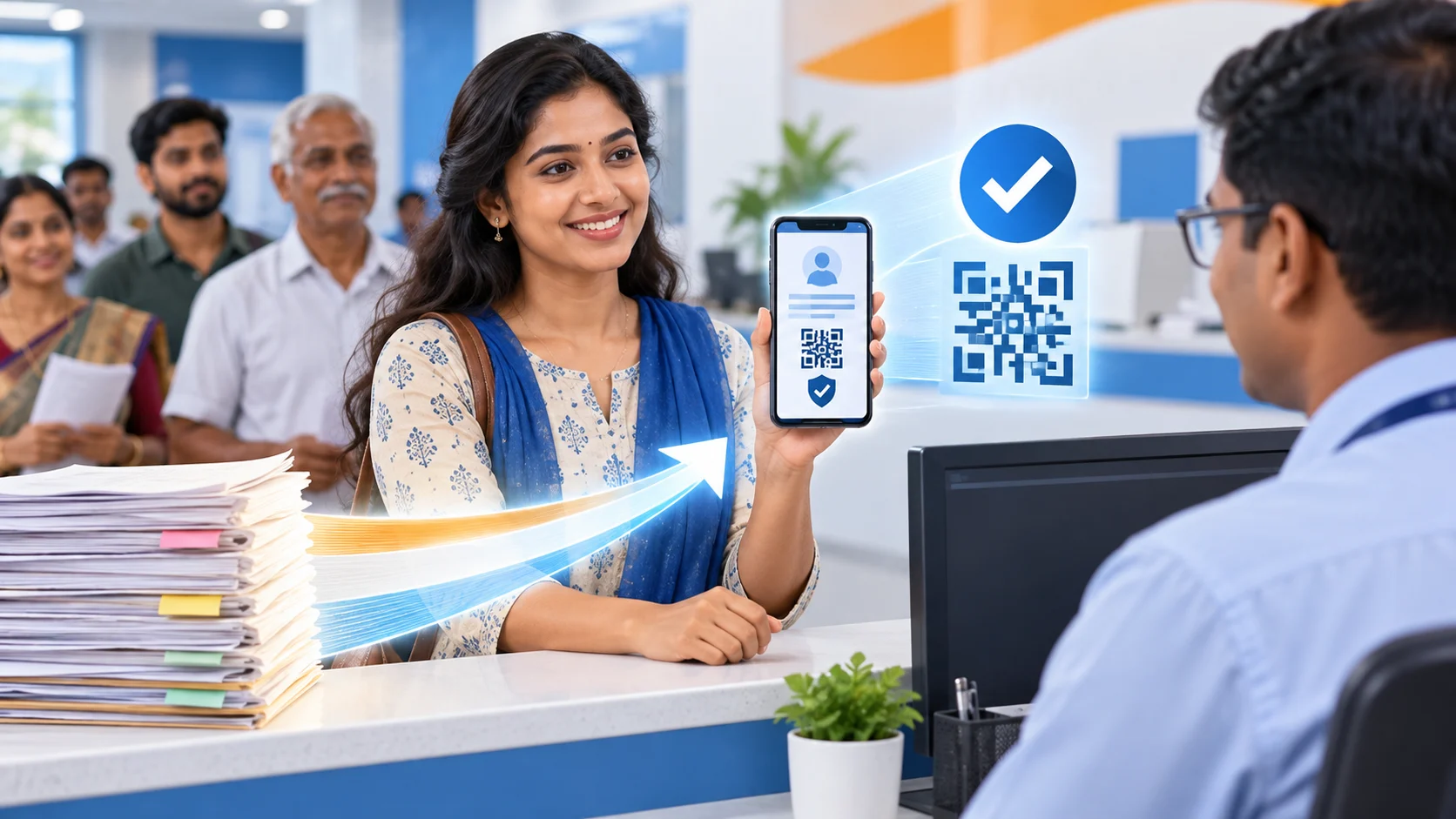
Quick answer: Yes—documents issued through the DigiLocker system by an authorised issuer are deemed to be at par with original physical documents when used electronically. That status comes from Rule 9A of the Information Technology rules governing Digital Locker facilities. But an issued document is not the same as a file that a user merely uploads to DigiLocker Drive. Acceptance can also depend on whether the receiving organisation supports the document type, can verify its secure QR code or requires a separate process for a particular transaction.
Verified from: DigiLocker, National Academic Depository and Ministry of Electronics and Information Technology official material, checked 13 September 2026.
The practical question is not simply “Is DigiLocker valid?” It is: Who issued this document, where does it appear in the account, can the recipient verify it, and is the organisation asking for a document or for an additional procedure such as physical inspection, biometric authentication or an original instrument? This guide separates legal status from real-world acceptance so you can present the right version and solve objections quickly.
Why DigiLocker issued documents have legal recognition
DigiLocker is a Government of India digital-document platform under the Ministry of Electronics and Information Technology. Authorised organisations can issue records directly to a citizen’s DigiLocker account. The National Academic Depository’s official description states that issued documents in the DigiLocker system are deemed to be at par with original physical documents under Rule 9A of the Information Technology (Preservation and Retention of Information by Intermediaries Providing Digital Locker Facilities) Rules, 2016.
The important words are issued through the system. The document comes from a registered issuer—such as a government department, education board or transport authority—and is delivered or fetched using the identifiers required by that issuer. It is not simply a photograph made by the account holder.
Issued Documents versus Uploaded Documents
| Feature | Issued Documents | Uploaded Documents / DigiLocker Drive |
|---|---|---|
| Source | Authorised issuer connected to DigiLocker | User uploads a scan, photo or PDF |
| Authenticity signal | Digitally issued and linked to issuer records | Upload alone does not prove who created the original |
| Official-use preference | DigiLocker recommends issued documents | May be accepted as a copy, depending on the recipient |
| Verification | Can include secure QR/document identifiers for verification | Depends on the underlying file and any signature it already contains |
| Legal equivalence | Recognised under the DigiLocker rules when used electronically | Not automatically converted into an issuer-authenticated document by uploading it |
DigiLocker’s official “Ask Expert” material explains that the Issued Documents section contains digitally signed, legally valid documents directly from authorised issuers, while the Uploaded Documents section is personal storage for digitised copies. It recommends issued documents for official purposes.
This distinction prevents a common mistake. Scanning a paper certificate and placing it in DigiLocker is convenient, but the storage location does not itself certify the scan. If the same certificate is available from its authorised issuer inside DigiLocker, retrieve the issued version and present that one.
How to check whether your document is an issued document
- Sign in only through the official DigiLocker website or app.
- Open the Issued Documents section.
- Find the issuer name, document type and issue or fetch details.
- Open the document and inspect its identifiers and secure QR code, if present.
- Confirm that your name and other identity details match the issuer’s record.
- Use the share or download function provided for that issued record.
If the document appears only under Uploaded Documents or Drive, search for the relevant issuer through “Search Documents” or “Get Issued Documents.” The issuer may ask for a roll number, registration number, licence number, year or another reference. Enter it exactly as recorded by the authority.
How a DigiLocker document is verified
Verification is how a receiving office distinguishes an authentic electronic record from a screenshot. DigiLocker provides an official verification service at verify.digilocker.gov.in. A recipient can scan the secure QR code on a supported document and compare the returned details with the document presented.
For best results, share the original downloaded PDF or use DigiLocker’s built-in sharing method. Repeatedly photographing, compressing or editing the file can make a QR code unreadable. Do not crop the issuer name, document URI, QR code, digital-signature panel or verification information.
A screenshot can be useful for quick viewing, but it is weaker than the complete issued file because it may omit machine-verifiable information. If an office says the screenshot is unacceptable, ask whether it can accept the original DigiLocker PDF or verify the QR code instead.
Where DigiLocker documents are commonly useful
Available issuers and document types change as organisations join or update the platform. Common categories include driving and vehicle records, academic awards, identity-related records, insurance documents and certificates from government bodies. The exact document that appears in your account depends on the issuer’s integration and whether your identifiers match its database.
Do not assume every item you possess on paper is available digitally. Search the issuer list inside DigiLocker. If the authority is not listed, or the relevant year and document type are missing, you may still need a certified physical or separately digitally signed copy.
Why an office may still refuse a DigiLocker document
A refusal does not always mean the document lacks legal recognition. The problem may be operational:
- the person at the counter is unfamiliar with verification;
- you showed an uploaded scan rather than an issued document;
- the QR code is blurred or cropped;
- the name, date of birth or document number does not match the application;
- the receiver requires a specific issuer, document version or recent certificate;
- the transaction also requires physical inspection, biometric verification or possession of an original instrument;
- the issuer record has been corrected, revoked or replaced; or
- the receiving system cannot yet ingest that document electronically.
Legal equivalence of an electronic issued document does not erase every separate eligibility or procedural condition. For example, a digital driving licence can evidence licence particulars, but a traffic authority can still check status in its own database. An academic award can be authentic while a university still requires an application, equivalence assessment or transcript sent through a specified channel.
What to do if a valid issued document is not accepted
1. Confirm you are presenting the issued version
Open Issued Documents in front of the receiving official. Show the issuer name and complete document rather than only a gallery image or WhatsApp copy.
2. Offer the verification route
Point to the secure QR code and the official DigiLocker verification website. A polite request to verify is usually more effective than arguing about the platform in general.
3. Ask for the exact rule or checklist
Ask whether the problem is authenticity, document type, date, name mismatch or a separate physical requirement. Request the written checklist, circular or portal instruction. This converts a vague refusal into a fixable issue.
4. Escalate within the receiving organisation
If the objection is simply that “digital copies are never valid,” request a supervisor or grievance officer. Refer to Rule 9A and share the official DigiLocker/NAD explanation. Record the office, date and stated reason without filming people where recording is prohibited.
5. Contact the issuer for record errors
DigiLocker displays data supplied by the issuer. If the name, marks, registration number or other particulars are wrong, the issuing authority generally has to correct its source record. Uploading a corrected scan will not repair the issued record.
Name mismatch and Aadhaar-related problems
A mismatch in name or other identifiers can prevent a document from being fetched or matched. Compare spelling, initials, sequence, date of birth and document number with the issuer’s record. Do not repeatedly create accounts or alter details without understanding which record is wrong.
If the underlying Aadhaar details themselves need correction, consult our Aadhaar Update Guide 2026. An Aadhaar correction and a correction to an education board, licence authority or other issuer are separate actions; changing one database may not automatically change another.
Privacy and safe sharing
- Use the official app or website and check the domain before signing in.
- Do not share OTPs, PINs or passwords with an agent or receiving office.
- Share only the document necessary for the transaction.
- Avoid posting documents or QR codes on social media.
- Mask unnecessary identifiers when sending a copy for preliminary review.
- Use official sharing or verification where possible instead of forwarding screenshots.
- Sign out of public or shared computers and remove downloaded files.
A verifiable digital document can still contain sensitive personal information. Legal validity is not permission for every recipient to collect or retain more data than necessary. Ask why a copy is required and how it will be used when the context is unclear.
Practical examples
Example 1: Driving licence at a verification counter
The licence appears under Issued Documents and includes a secure QR code. Present the original digital file and let the official verify it. If a physical card is requested, ask whether the requirement is for authenticity or whether a separate local procedure specifically requires the card.
Example 2: Board certificate uploaded as a scan
A student uploads a scanned marksheet into DigiLocker Drive. The scan remains useful storage, but the upload itself is not proof that the board issued it. If the board is available as an issuer, the student should fetch the issued marksheet using the board’s required identifiers.
Example 3: Issued certificate has the wrong spelling
The QR code verifies successfully, but the name differs from the application. Verification proves the electronic record is authentic; it does not resolve the mismatch. The student should contact the issuing board for correction and ask the receiving institution about its mismatch process.
What DigiLocker validity does not mean
It does not mean every uploaded file becomes an original. It does not mean every recipient must ignore its own lawful procedural requirements. It does not guarantee that an expired, suspended, revoked or inaccurate credential is usable. It also does not make an edited screenshot authentic. The legal recognition works together with issuer authenticity, integrity, verification and the purpose for which the record is presented.
Official sources
- DigiLocker official portal
- DigiLocker FAQs
- National Academic Depository: about DigiLocker documents and Rule 9A
- DigiLocker secure QR verification
- DigiLocker Ask Expert guidance
Frequently asked questions
Is a DigiLocker PDF equal to an original document?
An electronic document issued through DigiLocker by an authorised issuer is deemed at par with the original physical document under Rule 9A. Check that it is in Issued Documents, not merely a user-uploaded scan.
Is a screenshot of a DigiLocker document valid?
A screenshot may show the information, but the complete issued PDF or in-app document is preferable because it retains verification elements. A receiving organisation may reject a cropped or unverifiable screenshot.
Can I print a DigiLocker document?
You can print a downloaded document, but electronic verification is central to establishing authenticity. Keep the QR code and document identifiers clear, and provide the electronic version if requested.
What if the QR code does not scan?
Download a fresh copy from Issued Documents, avoid image compression, increase screen brightness or print clearly. If verification still fails, contact DigiLocker support or the issuer.
Does uploading a document make it legally valid?
No. Uploading stores a copy. It does not automatically turn the file into a digitally issued record from an authorised issuer.
Final checklist before presenting a DigiLocker document
- Confirm the document is under Issued Documents.
- Check name, number, date and issuer.
- Download or share the original digital file.
- Keep the secure QR code visible and readable.
- Use the official verification site if questioned.
- Ask for a written requirement if an office refuses it.
- Contact the issuer—not just DigiLocker—when source data is wrong.
- Protect OTPs, account credentials and unnecessary personal data.
Last verified: 13 September 2026. Issuer coverage and receiving procedures can change, so check the relevant authority’s current instructions.
Public-service information disclaimer: This guide summarises official DigiLocker material and is not legal advice for a particular dispute.