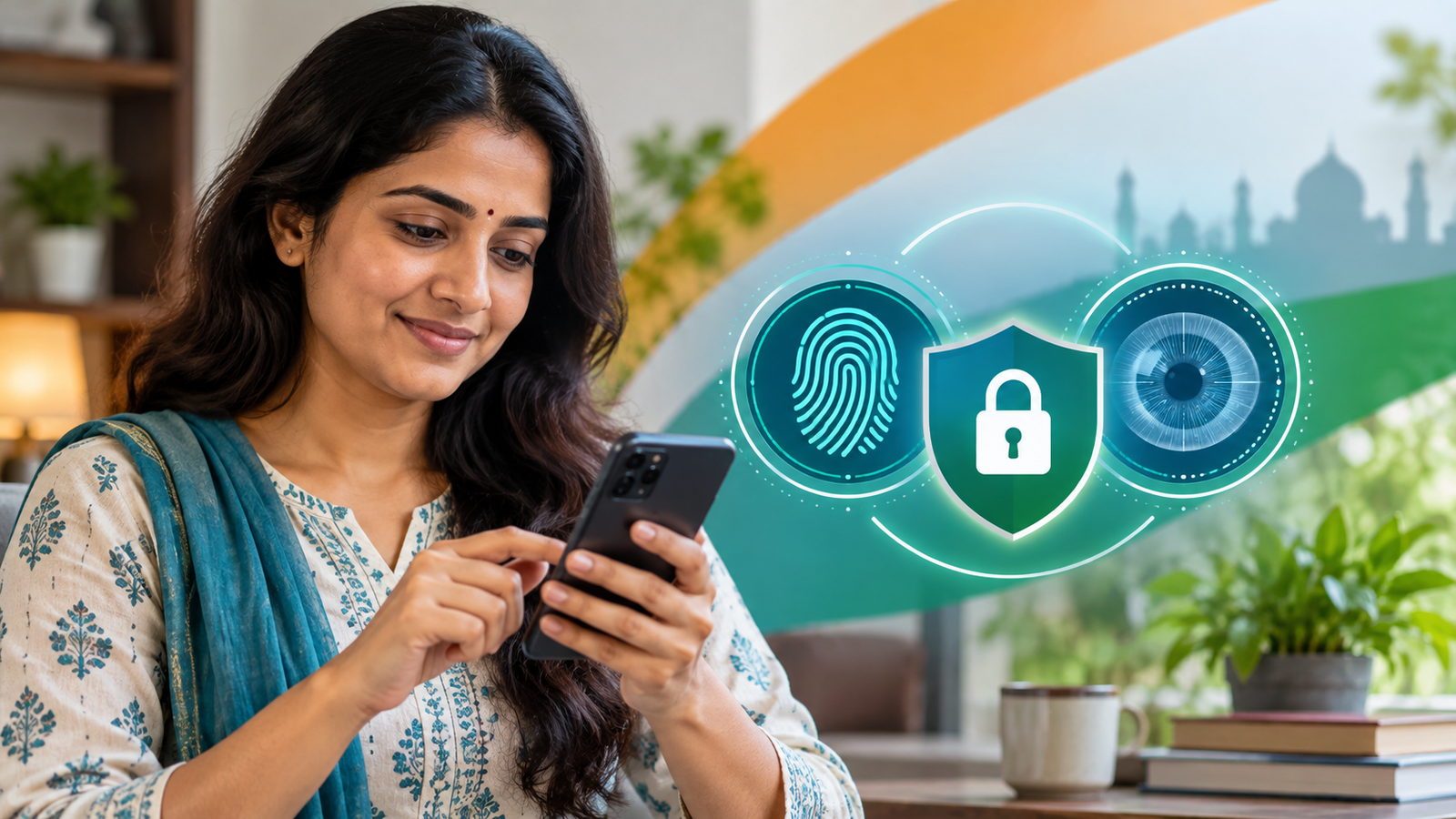
Aadhaar biometric locking lets you block fingerprint, iris and face authentication until you temporarily unlock or disable the lock. UIDAI provides the service through its official Aadhaar channels, and a registered mobile number is essential for the online flow. Locking biometrics can reduce misuse risk, but it does not lock every use of Aadhaar or replace basic identity-security habits.
Last verified: 29 September 2026 against UIDAI guidance and the Aadhaar Authentication and Offline Verification Regulations.
Contents
- What biometric locking does
- What you need
- How to lock and unlock
- Biometric lock versus Aadhaar-number lock
- Problems and recovery
- FAQs
What Aadhaar biometric lock means
UIDAI allows an Aadhaar number holder to lock the biometric records used for Aadhaar authentication. When the lock is active, authentication requests that depend on the locked biometrics should fail with an appropriate response. UIDAI’s regulations provide for temporary unlocking when an authentication is needed and for removing the permanent lock through a secure process.
The biometric set covers the modalities used by the Aadhaar system, including fingerprints, iris and face authentication where supported. The feature is useful if you do not expect to use biometric Aadhaar authentication regularly, if a device or environment feels unsafe, or if you want an additional barrier after a suspected identity-security incident.
A biometric lock does not delete your biometrics from UIDAI’s records. It changes whether they can be used for authentication. It also does not cancel Aadhaar, change demographic details, stop every OTP-based service, or prevent offline verification using a document or QR code where that method is lawfully accepted.
What you need before locking biometrics
- Your Aadhaar number or another identifier accepted by the official service.
- Access to the mobile number registered with Aadhaar for OTP verification.
- The official myAadhaar website or official Aadhaar app, not a link received from an unknown sender.
- A private device and a secure connection.
UIDAI states that a registered mobile number is essential for the online biometric lock/unlock service. If your current number is not registered, you generally need to visit an Aadhaar enrolment centre or Aadhaar Seva Kendra to update it. Our Aadhaar update guide explains which changes require a centre visit.
Before entering an Aadhaar number, check that the browser is on an official uidai.gov.in or myaadhaar.uidai.gov.in address. Fraudulent pages often imitate government colours and ask for an OTP, payment or remote-access app. UIDAI’s security service is free; do not pay a caller to “activate protection.”
How to lock Aadhaar biometrics online
- Open the official myAadhaar portal from UIDAI’s website.
- Choose the service for locking or unlocking biometrics.
- Enter the requested Aadhaar details and security code.
- Request the OTP and read it only on your own device.
- Enter the OTP on the official page and confirm the biometric lock.
- Save the confirmation or reference without posting it publicly.
Labels may change as UIDAI updates the portal, but the security principle stays the same: begin from UIDAI, authenticate with the registered mobile and confirm the action. Close the session when finished, especially on a shared computer.
How to temporarily unlock Aadhaar biometrics
- Return to the official lock/unlock biometrics service.
- Authenticate with the requested Aadhaar identifier and OTP.
- Select temporary unlock rather than disable when you need one authentication.
- Complete the required biometric authentication promptly.
- Check that protection returns after the permitted unlock period or completed transaction.
UIDAI says the unlock can be temporary, while disabling removes the ongoing locking arrangement. Use temporary unlock for a one-off task. Use disable only when you deliberately want biometric authentication to remain available afterward. Do not leave biometrics unlocked merely because an agent or shop asks you to do so “in advance.”
How to use the official Aadhaar app
UIDAI says its Aadhaar app includes one-click biometric lock/unlock. Install only the official app listing linked by UIDAI or the recognised app store. Check the publisher, permissions and update history. A clone app may use Aadhaar-related words while having no connection to UIDAI.
On a new phone, verify the service again rather than restoring an unknown app backup. Protect the phone with a strong screen lock. The Aadhaar lock is useful, but a compromised email account, SIM or device can expose OTPs and other personal data even when biometrics are locked.
Example: unlock only for a required authentication
Ravi keeps his Aadhaar biometrics locked. At a regulated service point, he is told that biometric Aadhaar authentication is required for the chosen process. He opens the official UIDAI service himself, uses the registered mobile OTP, selects temporary unlock and completes the authentication. He does not share the OTP, does not hand over the unlocked phone, and checks the result afterward.
If the service can accept another lawful identification or offline-verification method, Ravi can ask about that option. A request for Aadhaar should have a stated purpose and follow the applicable rules. Biometric unlock is a security choice, not blanket consent for unrelated data collection.
Biometric lock versus Aadhaar-number lock
| Feature | What it restricts | Typical alternative while active |
|---|---|---|
| Biometric lock | Fingerprint, iris and applicable face authentication | Temporarily unlock when biometric authentication is required |
| Aadhaar-number lock | Authentication using the Aadhaar number | UIDAI says a Virtual ID may be used in a locked-Aadhaar scenario where supported |
These controls are related but not identical. Do not assume that locking biometrics also locks the Aadhaar number, or that locking the number automatically blocks all biometric use. Read the label and confirmation on the official service before proceeding.
What does not change after biometric locking
- Your Aadhaar number remains assigned to you.
- Your demographic data is not automatically updated or corrected.
- Previously issued Aadhaar documents are not erased.
- OTP security, SIM protection and device security remain important.
- Organizations may still verify identity through other lawful methods.
- PAN-Aadhaar linkage status is a separate Income Tax Department matter; see our PAN-Aadhaar linking status guide.
How to review Aadhaar authentication history
UIDAI offers an Aadhaar authentication history service that can show recent authentication activity. Use it when you suspect an unknown attempt, after temporarily unlocking biometrics, or as a periodic check. An unfamiliar entry is not by itself proof of fraud, but it is a reason to note the date, method and requesting entity and then use UIDAI’s official complaint channel.
Do not publish screenshots containing Aadhaar numbers, transaction identifiers or personal details. Share the minimum information required with UIDAI or an authorized institution. Mask documents whenever a full number is not necessary.
Common problems and what to do
The OTP does not arrive
Confirm network coverage, wait for the permitted retry interval and check whether the mobile number is the one registered with Aadhaar. Never ask another person to forward an OTP. If the registered number is no longer accessible, visit an authorized Aadhaar centre for a mobile update.
Biometric authentication fails after temporary unlock
Check whether the unlock is still active and whether the service is using the correct method. A failure can also arise from capture quality, device connectivity or the requesting entity’s system. Retry only through an authorized device and avoid repeated attempts when staff cannot explain the error.
The portal or app is unavailable
Do not switch to a third-party “Aadhaar unlock” website. Wait and use UIDAI’s official channel, the Aadhaar app, an Aadhaar Seva Kendra or an enrolment centre as appropriate. Availability is a service condition, not permission for an intermediary to collect your OTP.
You suspect misuse
Lock biometrics if accessible, review authentication history, preserve relevant messages and contact UIDAI through its official helpline or grievance channel. If money or another regulated account is involved, also notify the bank or provider promptly.
Aadhaar security checklist
- Use UIDAI’s official portal or app.
- Keep biometrics locked when you do not need biometric authentication.
- Prefer a temporary unlock for a specific task.
- Never share an OTP or install a remote-support app on a caller’s instruction.
- Use a Virtual ID or masked Aadhaar when the service supports it.
- Review authentication history after suspicious activity.
- Keep only the minimum necessary document copies.
For document acceptance questions, our DigiLocker validity guide explains the difference between issued and uploaded files. It is not a substitute for UIDAI authentication rules, but it may help when an organization accepts a verified digital document.
Frequently asked questions
Is Aadhaar biometric locking free?
UIDAI presents lock/unlock biometrics as an Aadhaar security service. Do not pay an intermediary or disclose an OTP to use it.
Will locking biometrics stop OTP authentication?
The biometric lock targets biometric authentication. OTP and other methods have separate rules and availability. Aadhaar-number locking is also a separate control.
Can I unlock biometrics without a registered mobile?
UIDAI states that a registered mobile number is essential for the online service. Visit an Aadhaar centre if the number must be updated.
Is temporary unlock different from disabling the lock?
Yes. Temporary unlock is intended for a limited authentication need; disabling removes the continuing biometric lock until you enable it again.
Does biometric lock prevent every Aadhaar fraud?
No. It reduces one attack surface. Phishing, OTP theft, fake apps, document misuse and other identity risks still require separate precautions.
Should I lock Aadhaar after every use?
If you choose to keep biometric locking enabled, use temporary unlock for necessary authentications so protection can resume. Confirm the current behavior on UIDAI’s official service.
Conclusion: lock by default, unlock for a verified purpose
Aadhaar biometric locking is a practical control when you rarely need fingerprint, iris or face authentication. Keep the registered mobile secure, begin only from UIDAI’s official channels and choose temporary unlock for a specific verified transaction. Remember that the control protects biometric authentication, not every possible use of identity data.
Official sources: UIDAI biometric unlock FAQ; UIDAI My Aadhaar services; Aadhaar Authentication and Offline Verification Regulations.
Verification metadata: _cm_verified_source_url=https://uidai.gov.in/en/925-faqs/aadhaar-online-services/biometric-lock-unlock/11685-how-to-unlock-locked-biometrics.html; _cm_source_authority=UIDAI; _cm_effective_date=Not applicable—continuing service.
Editorial metadata: Author: Ajit Naskar; Publication date: To be scheduled after approval; Updated: 29 September 2026; Last verified: 29 September 2026; Correction history: None.
Disclaimer: This guide is educational and not a substitute for UIDAI’s live instructions or legal advice. Interface labels and service availability can change.
Leave a Reply